Your words. At your pace.

Read your screen. Speak your thoughts.

See it work

Windows In development

Speak.

Turn a thought into a draft you can review.

Hold F9
A thought, capturedExample

Let the thought come first.

Hold F9 and speak.

Your draft Saved locally

Let’s take this one step at a time. The important thing is to get the idea down.

Review. Edit. Make it yours.
Open draft reviewShift + F8
Silent example
Select.

Hear selected text, one word at a time.

F5
A different way to readExample
A little space to think

Some ideas are easier to follow
when we hear them.

Take your time with the words.
There is more than one way
to find your way through.

You can come back to it.

Read your selectionChoose text in a supported app.
F5
Silent example

Crop it.
Hear every word.

Image text. Handwritten notes.

Silent demos

Silent demos

Starry Night

Text inside a picture.

Handwriting

A handwritten thought.

Generated samples · Handwriting results vary

Shortcuts & demo details

Press Ctrl + Alt + X once, then drag around the words. Windows recognizes them locally; an online voice reads them aloud.

Starry Night: the selected first line, “The night sky swirls”, is part of the painting’s pixels. The painting sits inside an article page. Handwriting: “Take one small step.” is the selected first line of the note.

Both samples and their word positions were checked with Windows OCR. These generated samples use silent, guided timing at about 195 words per minute, not recorded speech. Handwriting results vary with legibility. OCR language packs and an internet connection for reading are required.

One calm place
to come back to.

Your voices, drafts and reading controls. All close at hand.

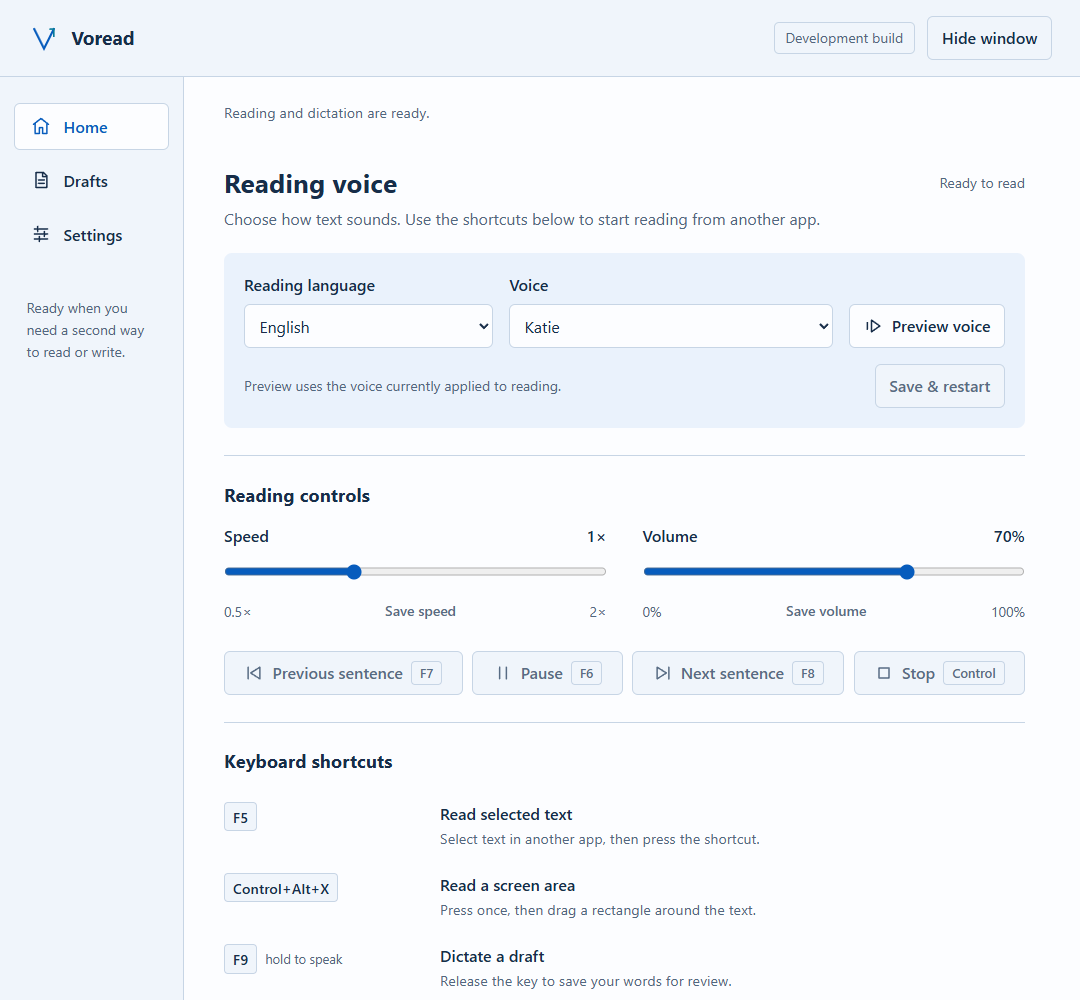
Voread for WindowsDevelopment interface
Voread Windows app showing Home, Drafts and Settings navigation, reading language and voice choices, speed and volume controls, and visible F5, F6, F7 and F8 shortcut labels.

Light, dark, and high-contrast themes

Adjustable text size

Draft history, saved on your device

Good to know.

How do the shortcuts work?

Hold F9 to dictate. Shift + F8 opens draft review. F5 reads selected text in supported apps. F6 pauses or continues reading; F7 goes to the previous sentence and F8 to the next. Ctrl + Alt + X starts the crop tool; press once, then drag.

Can I review before inserting?

Yes. Dictation becomes a saved draft. Edit, listen back or copy it, then choose insertion as a separate action.

Does it work offline?

Reading aloud and dictation need online services. Screen text recognition runs locally and depends on installed Windows language packs.

Where are my drafts kept?

Drafts stay on your computer. Selected and cropped reading text stays in memory. Online voice services process the audio or text needed for speech.

How does highlighting work?

The current word is accented while the surrounding screen dims. Exact word focus depends on available text positions and speech timing.

Is Voread available yet?

Voread for Windows is in development. The planned subscription is US$4 per week. A public installer is still in preparation.

Make room for
how you work.

Explore the workflow
Currently in development for WindowsPublic installer in preparation.